
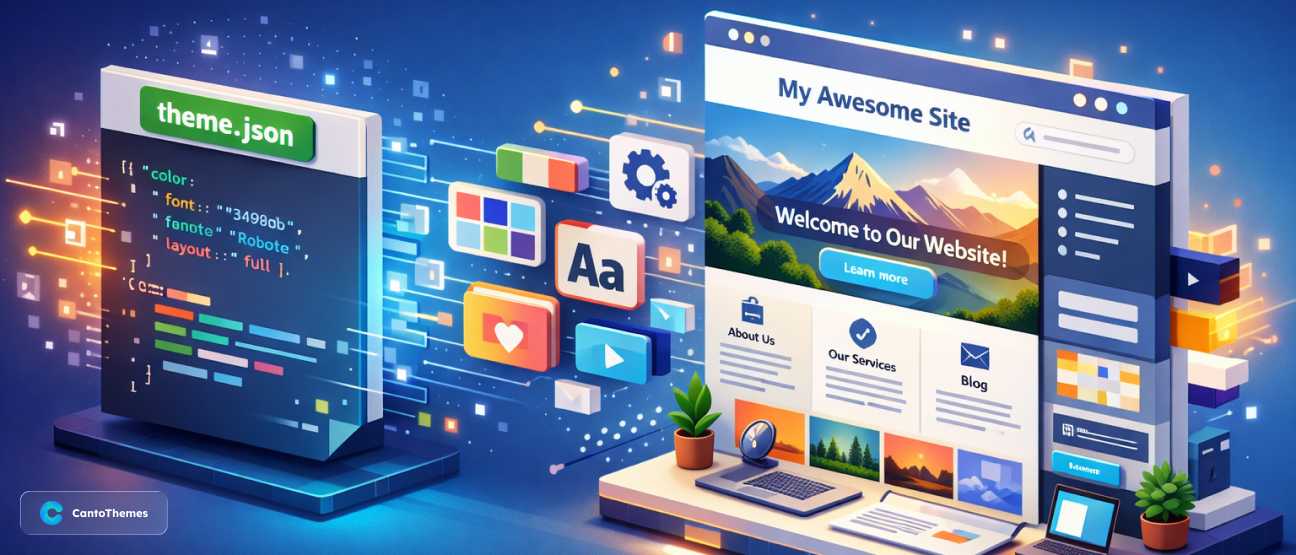
WordPress theme development starts with a choice: build a classic theme with PHP templates, or a block theme with block-based templates and the Site Editor. Both control how your content appears, but they use different files and editing workflows.
Classic themes suit projects that need PHP-controlled layouts or maintenance of an existing classic theme. Block themes let site owners edit templates, headers, footers, and global styles through the Site Editor, part of the feature set often called Full Site Editing (FSE).
This beginner’s guide covers the skills, required files, template hierarchy, and content loops for each approach, then explains how to choose a starting point for your custom WordPress theme.
What Is a WordPress Theme?
A WordPress theme is a collection of files that defines a site’s presentation. Templates arrange content, while styles control typography, colors, spacing, and layout.
WordPress stores posts, pages, and other content in its database. The theme displays that content, working alongside WordPress core and plugins.
Theme development can involve HTML, CSS, PHP, JavaScript, and JSON. The languages you use most depend on the theme type and the features you build.
How Themes Separate Content and Design
Switching themes normally preserves posts and pages, but theme-specific layouts, widgets, and features may need adjustment. Keep functionality that should survive a theme change in plugins, and test a switch on a staging site.
Essential Skills for Theme Development
The following skills help you build and troubleshoot a WordPress theme:
- HTML (HyperText Markup Language): The structural backbone of your theme.
- CSS (Cascading Style Sheets): Responsible for visual styling and layout.
- PHP (Hypertext Preprocessor): The primary language for Classic themes, used for logic and database interaction.
- JSON (JavaScript Object Notation): Used to configure theme settings and styles. The
theme.jsonfile is where you define global styles and settings. - JavaScript: Useful for interactivity; building custom editor blocks can also involve React.
Start with HTML and CSS, then learn PHP syntax, functions, arrays, and loops for classic themes. For a block theme, begin with block markup and JSON; you can learn custom block development separately when your project needs it.
The WordPress Template Hierarchy Explained
The WordPress template hierarchy is the order WordPress uses to find a template for the requested page. A category archive, individual post, and search results page can each use a different template.
Both theme types use a hierarchy, with different file extensions and locations:
- Classic Themes look for
.phpfiles (e.g.,category.php). - Block Themes look for
.htmlfiles inside atemplates/folder (e.g.,templates/category.html).
For example, for a category with the slug news, the file lookup order is:
- Block Theme: WordPress checks
templates/category-news.html, thentemplates/category-{id}.html,templates/category.html,templates/archive.html, andtemplates/index.html. Replace{id}with the category ID. - Classic Theme: WordPress checks
category-news.php, thencategory-{id}.php,category.php,archive.php, andindex.php. - Fallback: Both eventually fall back to
index.html(Block) orindex.php(Classic).
Use the official template hierarchy reference when deciding which template to create. For block themes, templates customized in the Site Editor are stored in the database and can take priority over theme files—check for those customizations if a file edit does not appear.
Required and Common WordPress Theme Files
The minimum files differ by theme type. Classic themes need style.css and index.php; block themes need style.css and templates/index.html. Other files below are common additions. See the WordPress references for classic template files and block theme structure.
Classic Theme Files
style.css: Contains theme metadata and CSS.index.php: The ultimate fallback template.functions.php: Optional, commonly used to enqueue assets and register theme features.header.php&footer.php: Optional template parts for shared header and footer markup.
Block Theme Files
style.css: Still used for theme metadata and custom CSS.theme.json: Recommended, but not required for WordPress to recognize the theme; configures global styles and settings.templates/index.html: The equivalent ofindex.php, but written in HTML/Block markup.parts/header.html&parts/footer.html: Optional reusable template parts for headers and footers.
The Power of theme.json
theme.json configures settings and styles; functions.php adds PHP behavior. They serve different purposes, and classic themes can also use theme.json. The WordPress theme.json documentation explains how to:
- Define a global color palette and typography.
- Control which blocks have access to specific settings (like spacing or borders).
- Set layout widths (content vs. wide).
- Apply styles to specific blocks (e.g., make all buttons have rounded corners) without writing a single line of CSS.
Displaying Content: The Loop vs. Query Loop Block
Classic templates use the PHP Loop to display posts. Block templates can use a Query Loop block for lists of posts, with nested blocks for titles, excerpts, and featured images. For a single post template, use blocks such as Post Title and Post Content to display the current post.
Classic Theme: “The Loop”
Here is a minimal PHP Loop for a classic template. A complete theme also needs the surrounding document structure and appropriate WordPress hooks:
<?php
if ( have_posts() ) :
    while ( have_posts() ) : the_post();
        the_title('<h2>', '</h2>');
        the_content();
    endwhile;
else :
    echo '<p>Sorry, no content was found matching your request.</p>';
endif;
?>Setting Up Your Development Environment
Build and test your theme in a local or staging environment before deploying changes. This lets you check layouts, debug errors, and test plugin compatibility without interrupting visitors.
Local Server Options
A local WordPress installation needs PHP, MySQL or MariaDB, and a web server. Options include:
- Local: A desktop app for setting up local WordPress sites.
- XAMPP / MAMP / WAMP: Local server stacks that allow you to install and configure WordPress yourself.
Install WordPress in your local environment, then follow our local WordPress development setup guide for the environment and testing workflow.
Essential Development Tools
A practical theme development toolkit includes:
- A Code Editor: Use an editor such as VS Code to work with theme files.
- Browser Developer Tools: Essential for debugging CSS and performance.
- Create Block Theme Plugin: A powerful official tool that allows you to create and export block themes directly from the WordPress interface.
- Debug Mode: Enable
WP_DEBUGin your local or staging environment to identify PHP errors during development.
Classic Themes vs. Modern Block Themes (FSE)
Classic themes use PHP templates for site structure and can support the block editor for post content. They can also adopt features such as theme.json. Choose this approach when maintaining a classic theme or when the project requires direct PHP template control.
Block Themes and the Site Editor
Block themes use block markup for templates and integrate with the Site Editor. They make site-wide visual editing available, but the controls a user sees depend on the theme’s settings and their permissions. Performance depends on the implementation, assets, content, and plugins; a block theme is not automatically faster.
For a new project that needs visual template editing, start by exploring a block theme. For an existing classic theme, learn its PHP templates first. Either approach can support a custom site; choose based on the editing experience, compatibility requirements, and maintenance workflow.
How to Start Your First WordPress Theme
Choose one theme type for your first practice project. Build a small template, load real sample content, and check the result before adding more features.
For a classic theme, create a folder under wp-content/themes/, add a style.css file with a valid theme header, and create index.php with a basic Loop. For a block theme, start with the theme header in style.css and a templates/index.html file containing block markup; add theme.json for styles and settings. These minimum files are a starting point, not a finished theme.
Before using your theme on a live site, test navigation, single posts, archives, search, empty states, keyboard access, and mobile layouts. Review PHP errors and confirm that the theme works with the plugins your site needs.
Leave a Reply