
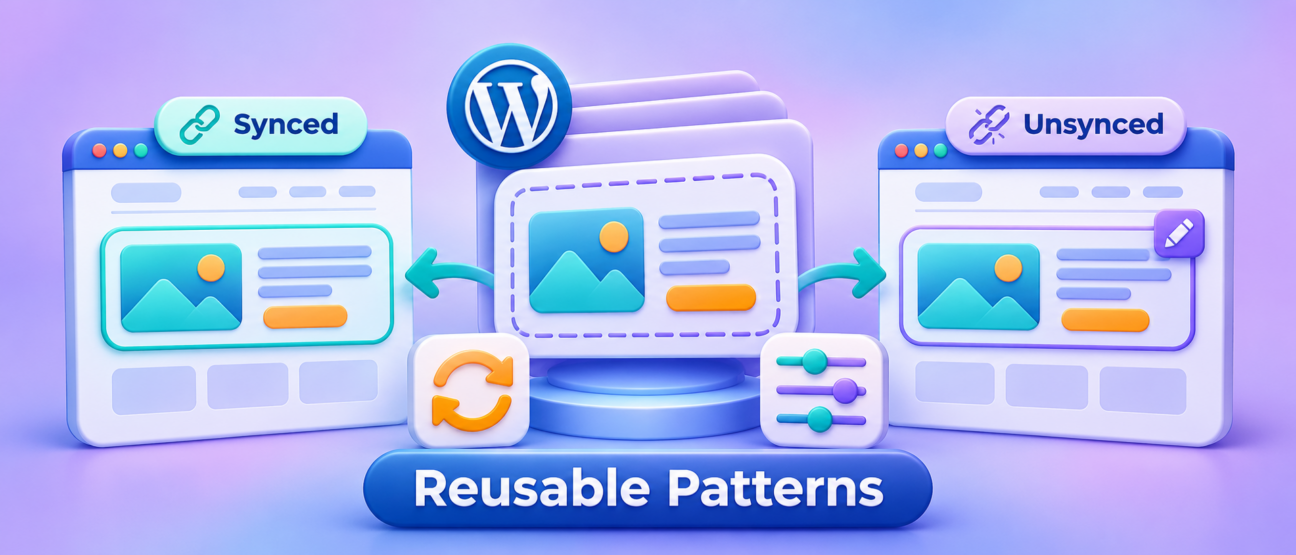
To create WordPress patterns, build a useful group of blocks, select the group, open its options, and choose the pattern creation action. Give it a descriptive name and decide whether it should be synced. Use unsynced patterns for independent copies and synced patterns when shared changes should reach every use.
The important decision is not the number of patterns you create. It is how each pattern should behave after insertion. This tutorial builds a reusable service section and a shared contact callout, then explains supported overrides, testing, and library maintenance.
Choose the right reuse behavior
| Need | Recommended starting point | Example |
|---|---|---|
| Repeat a layout with different information | Unsynced pattern | A benefits section on several service pages |
| Repeat the same content everywhere | Synced pattern | A standard contact notice |
| Share design with selected editable fields | Synced pattern with supported overrides | A consistent card with different copy |
| Share structural site sections | Template part | A header or footer |
WordPress’s pattern documentation describes patterns as collections of blocks you can reuse. Before building one, write down whether a future edit should affect one insertion or every insertion.
For example, “Service benefits — independent copy” and “Contact callout — shared details” describe different responsibilities. Naming that responsibility early prevents accidental global edits later.
Prepare a small test environment
Use staging or a local WordPress test site and create two test pages for your pattern. Two pages are important because synchronization cannot be understood from a single instance. Keep the content clearly fictional during testing.
Choose blocks that your normal site setup supports. A pattern depending on a specialist block plugin will still need that plugin on any destination site. Record dependencies before exporting or handing the pattern to another editor.
Set sensible global styles first where possible. A reusable component that inherits the site’s typography and colors is easier to adapt than one containing many unrelated local values.
Step 1: Build the section with ordinary blocks
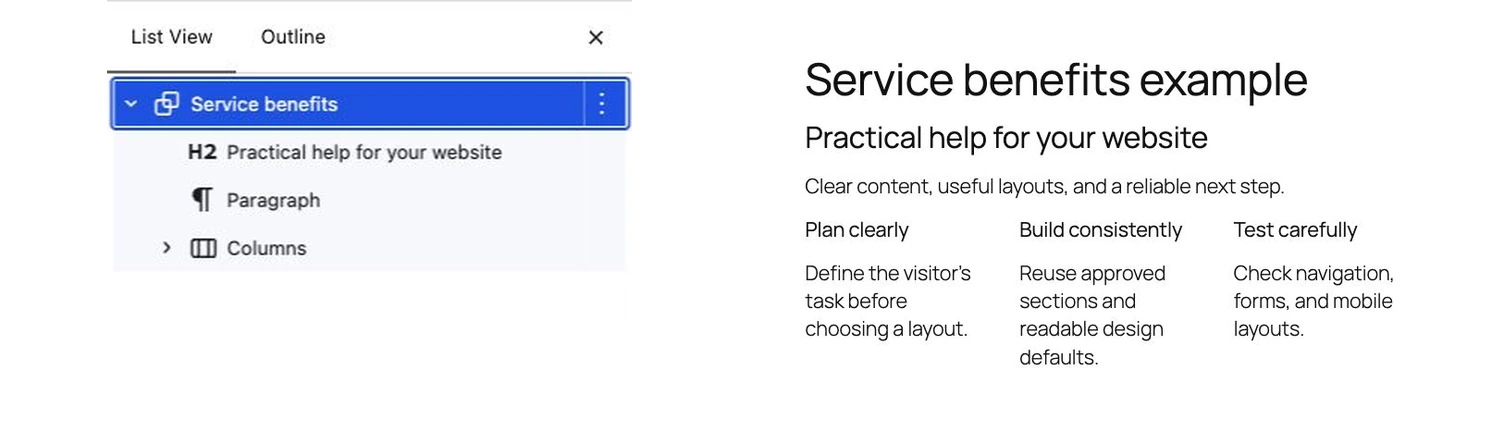
For a service benefits section, add a parent Group, a heading, an introductory paragraph, and a simple arrangement of benefit items. Keep the hierarchy clear in List View. Use real-length text so the design is not dependent on three unusually short demo labels.
Check the section on a narrow screen. Make sure columns stack in a logical order and the heading still describes the content. If the layout only works at one width, resolve that before turning it into a reusable pattern.
Remove temporary links and images. A pattern can spread accidental placeholders to many pages, so clean its content before saving it to the library.
Step 2: Create an unsynced pattern
Select the parent section, open its options menu, and choose the action to create a pattern. Interface wording can vary by version. Give the pattern a purpose-based name and choose an appropriate category if the interface offers it.
Turn synchronization off for the service benefits example. Insert it into both test pages. Change the heading and one paragraph on the second page, then verify the first page remains unchanged.
This is a useful handoff exercise. Ask another editor to insert the pattern, replace its content, and preview the result without guidance. If they cannot identify the parent section or understand the available fields, simplify the component or improve its naming.
Step 3: Create a synced contact callout
Build a separate contact section with a short invitation and a destination link. Create a pattern with synchronization enabled. Insert it into both test pages and update its shared content from the pattern editing context.
Open the two pages and confirm that both reflect the intended update. The synced pattern documentation explains this shared behavior. Treat it as a benefit when information must stay aligned and as a reason to review scope before saving.
Do not use this shared notice for unrelated campaigns just because the visual design looks similar. If one page needs a different offer, consider an independent copy or a supported override rather than rewriting the shared notice for everyone.
Step 4: Use overrides only where supported
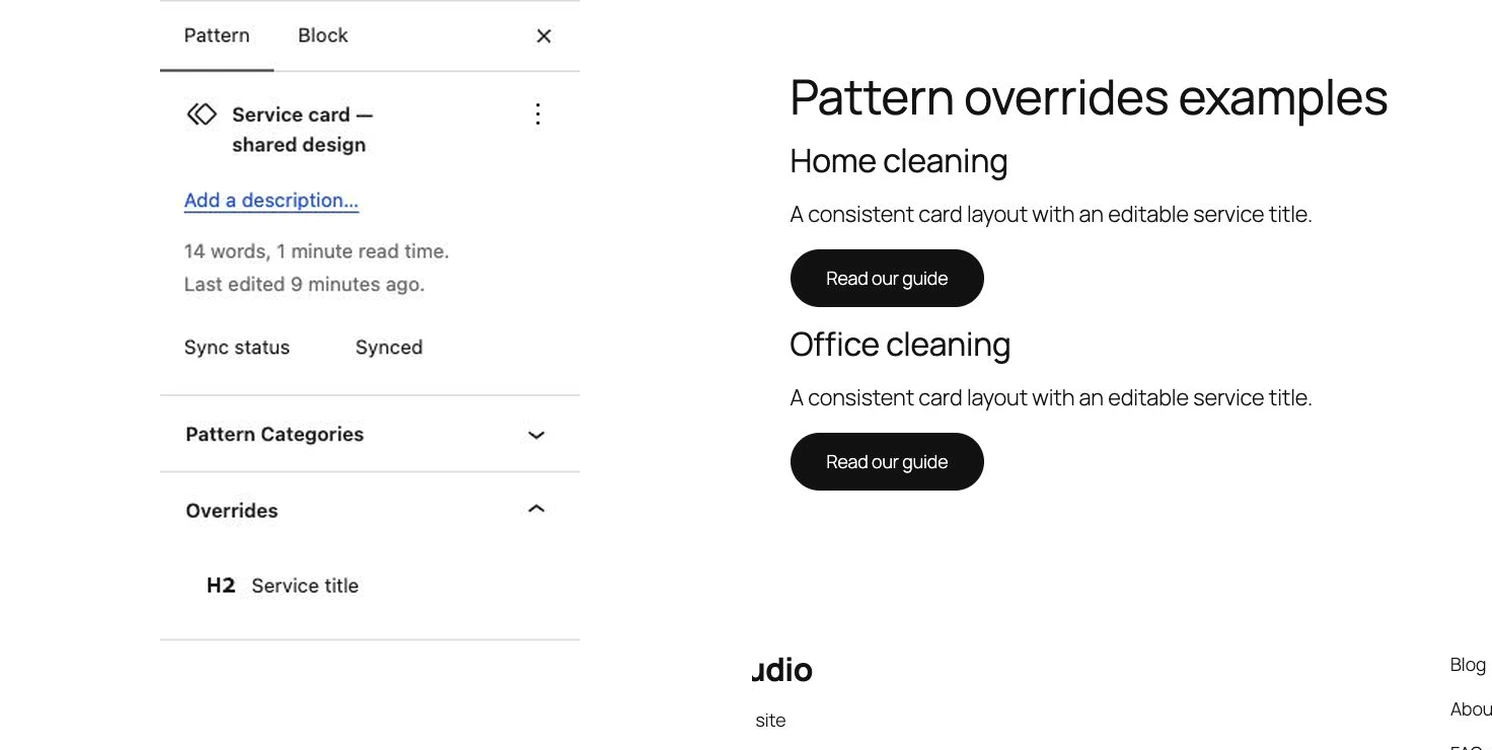
Pattern overrides allow selected content fields in supported blocks to vary while the pattern’s shared structure remains managed centrally. The WordPress introduction to overrides explains the feature and its scope.
On your actual setup, open the synced pattern and inspect the supported block’s override controls. Enable only the fields editors need, give those fields clear names where the interface permits, and test insertion on two pages.
Use a deliberate test: change one instance’s permitted text, then change the shared design. Confirm the local text stays appropriate while the shared design update behaves as expected. Availability is block- and version-dependent, so do not build a workflow around an unverified control.
Step 5: Check links, headings, and media
A reusable section still needs context. A heading level that is correct beneath one page title may be inappropriate inside another nested section. Review the outline after insertion instead of assuming the saved pattern guarantees a sensible hierarchy.
Update link labels and destinations. A repeated “Learn more” can become ambiguous when several cards appear together. Prefer labels that identify the destination or ensure the surrounding context makes the purpose clear.
For images, check crop behavior, alternative text, and whether the picture is meaningful or decorative in its new context. Reusing an image layout does not mean reusing the same image description automatically makes sense.
Step 6: Manage the pattern library
Group patterns by purpose and use names editors can recognize. Keep a brief note for each shared item: intended use, synchronization behavior, dependencies, and the person responsible for global edits.
Review near-duplicates before adding another variation. If two patterns differ only in an accidental margin, fix the source rather than preserving both. If they serve meaningfully different contexts, name that difference explicitly.
Before deleting a synced pattern, review its uses and plan replacements. Do not assume deleting a library item is harmless because the editor still displays one page correctly.
Export and reuse patterns carefully
Where your WordPress interface supports exporting patterns, use the provided export and import workflow. Test the imported result on the destination site, particularly when it uses different fonts, colors, widths, or block plugins.
Check media and links separately. Exporting layout information is not a guarantee that every external asset or site-specific destination is ready for another website. Replace staging URLs and confirm that the destination has permission to use the included media.
For a team library, keep a small changelog. State whether an update changes wording, layout, or dependencies. That helps maintainers decide whether existing uses need a visual review.
A practical pattern acceptance checklist
- The name describes the component’s purpose.
- The synced or unsynced behavior matches its use.
- Two test pages confirm the expected editing scope.
- Long text and narrow screens have been checked.
- Headings, links, and image descriptions make sense.
- Required blocks and plugins are documented.
- Shared updates have an owner and review process.
Frequently asked questions
Why did changing my pattern update several pages?
You likely edited a synced pattern’s shared content or design. Review its uses before changing it again, and use an independent copy when a page needs a separate component.
Can I use patterns with a classic theme?
Patterns can be useful in block content with a classic theme, but site-wide template editing and the available management interface depend on the setup. Test the workflow you intend to use.
Are patterns a replacement for templates?
No. Patterns help assemble content sections; templates define a broader structure. Keep the two responsibilities separate.
A useful pattern library contains components with predictable behavior. Start small, prove each component on two pages, and make shared editing scope obvious to the people maintaining the site.
Leave a Reply