
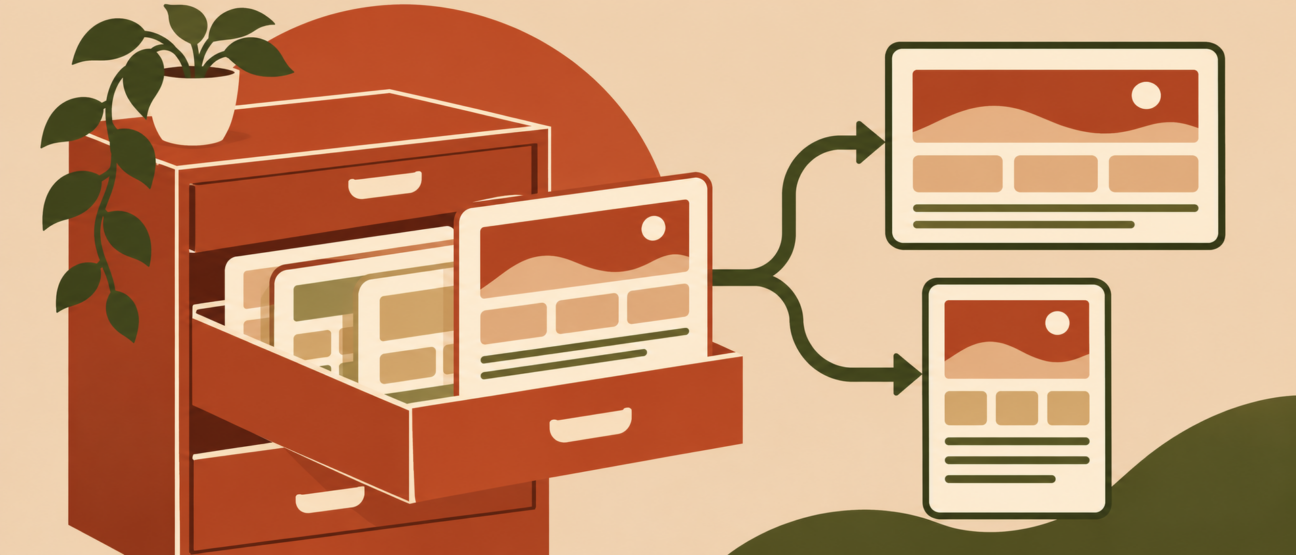
Use the Divi Library to save layouts and smaller elements that you want to reuse. Before saving, decide whether future instances should be independent copies or share updates. That decision prevents a useful shortcut from becoming an accidental site-wide edit.
A good library contains a small number of clear building blocks, such as a service introduction, a contact strip, and a testimonial layout. It does not need a separate saved item for every page.
Choose the right unit to save
Save a full page layout when the page structure itself is reusable. Save a section when several pages need the same arrangement. Save a module when you mainly want to reuse a specific design.
For a repair business, a service-page structure might repeat across repairs and maintenance. The wording, photograph, and service limitations should still be specific to each page.
Keep general layout decisions separate from claims about a business. Reusing a section should never copy an outdated price, location, or availability promise unnoticed.
Prepare a reusable service section
Build one useful service introduction on a draft page: a heading, a short explanation, an image, and a button. Use real content for the first version so you can see how text length affects the layout.
Remove page-specific assumptions before saving it as a starter. A “Book an emergency repair” button should not become the default action for a routine maintenance page. A reused design should carry structure, not unreviewed business claims.
Keep a list of fields that each editor must replace: heading, description, image, alt text, button label, destination, and any price or location. If the starter includes a form, document whether it reuses an existing form or requires a new configuration.
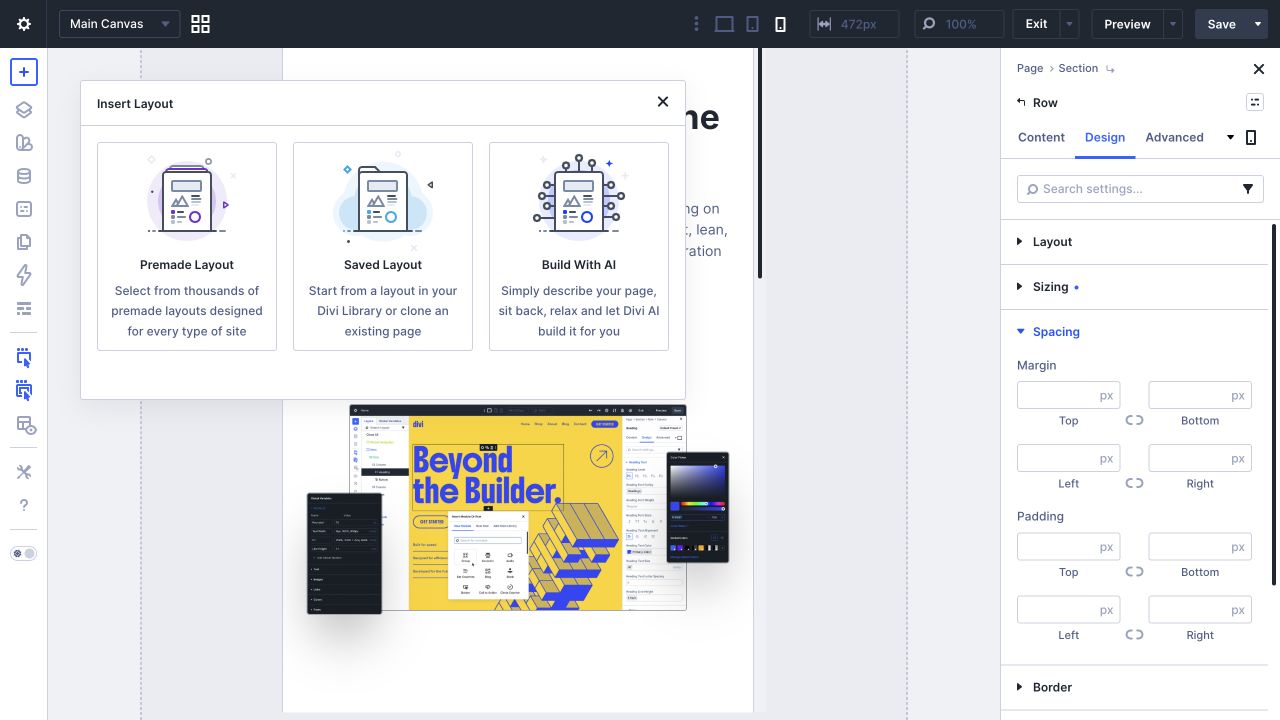
The actual Divi demo offers Saved Layout as a distinct starting point. Use it when you want to load something from the Library rather than import a new premade design.
Save a clean version in the Divi Library
- Open the source page in Visual Builder and right-click the section, row, or module you intend to reuse.
- Choose Save To Library, enter a purpose-based name, and select Add to Library.
- On the destination draft, use the matching Add Section, Add Row, or Add Module control, then Add From Library.
- Select the saved item and insert it. If you saved a full page instead, use Add Layout → Saved Layout → the item → Use This Layout.
- For a full-page import, inspect Replace Existing Content before confirming. Keep it off when the existing work should remain.
These are separate insertion contexts. If the saved section is absent from a module picker, return to Add Section rather than saving another duplicate.
For a complete page, use the builder’s Add to Library action. Elegant Themes’ Divi 5 Library guide describes the supported layout, section, row, and module workflows.
Use names that describe purpose: “Service page: enquiry layout” is more useful than “Blue section final 3.” Add a short maintenance note outside the public content if your team needs instructions.
Understand independent and global reuse
An independent layout instance is a starting point. Editors can adapt its text and arrangement without expecting every other page to change.
A global element is appropriate when the same content should update across its uses, such as a shared contact notice. Check exactly which settings and content are synchronized in your installed Divi version.
Prove the synchronization behavior before wider use
Create two temporary drafts named for their purpose. Insert the saved item in both, then make a harmless text or style change in one. Inspect the other page and record what changed.
If a global item synchronizes content and design, use it only where those properties should remain shared. If some properties can be selectively synchronized in your setup, document exactly which ones and test them.
A shared phone number is a good candidate for synchronized content. Service descriptions usually need independent wording even when they use the same design.
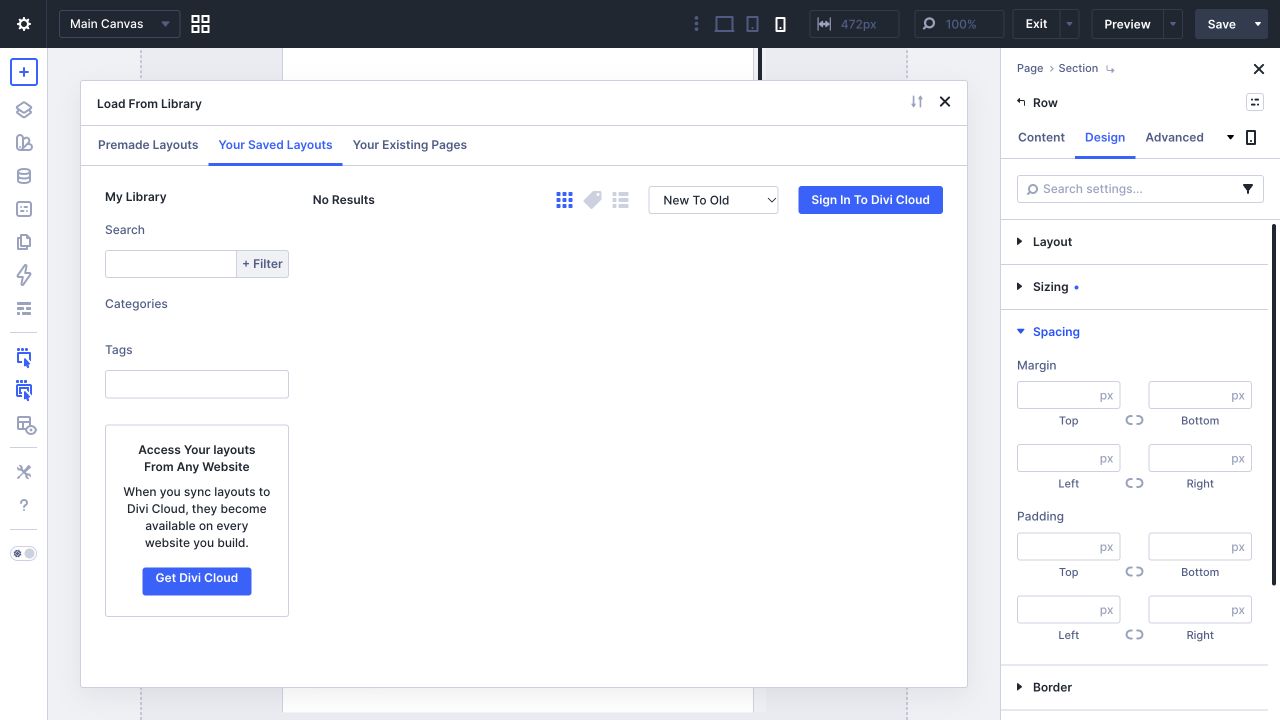
This screenshot is the real saved-layout screen in the public demo. Its library is empty, which is expected for that environment. Your own saved items should appear in the relevant library view.
If you cannot find an item, check its type and the insertion context. A section does not necessarily appear when you are browsing modules. Check filters, categories, and whether the item belongs to the local Library or a connected cloud account.
Insert layouts without overwriting useful content
Create a draft page, open the builder, and load the saved item from the appropriate Library context. Review any option that replaces existing content before confirming.
If the destination already contains work, duplicate it or keep a recoverable revision first. Loading a full-page layout may replace more than the small section you intended to add.
After insertion, replace all sample wording, images, links, and form destinations. Search the page for old business names and locations. Reuse the design system without publishing duplicate service copy.
Move layouts between sites deliberately
Export only the items needed for the destination and keep the file with a short dependency note. Include the Divi version, required extensions, fonts or external assets, and whether the item contains global behavior.
Import on a staging destination first. Check asset availability and replace links that still point to the original domain. An imported button can look correct while sending visitors to another business.
Review forms and dynamic content particularly carefully. A layout referencing a product, post, or form from the source site may need a new mapping. Verify the rendered content instead of assuming all IDs were translated automatically.
For a reusable agency starter, use clearly labeled example content and a completion checklist. Do not ship a real client’s private details, analytics IDs, or licensed assets into another client’s website.
After testing, keep one approved version and archive superseded exports outside the active Library. A predictable library is easier to use than a large collection of nearly identical designs.
Keep the library manageable
- Remove obsolete test versions after confirming they are no longer needed.
- Separate shared content from independent page starters.
- Export important items before major redesign work.
- Check third-party module dependencies before moving layouts between sites.
- Review global items whenever business details change.
Assign someone to maintain the library. A reusable layout saves time only when editors can find the right item and understand its update behavior. Start with a few proven patterns, then add more when a repeated editing task justifies them.
Leave a Reply