
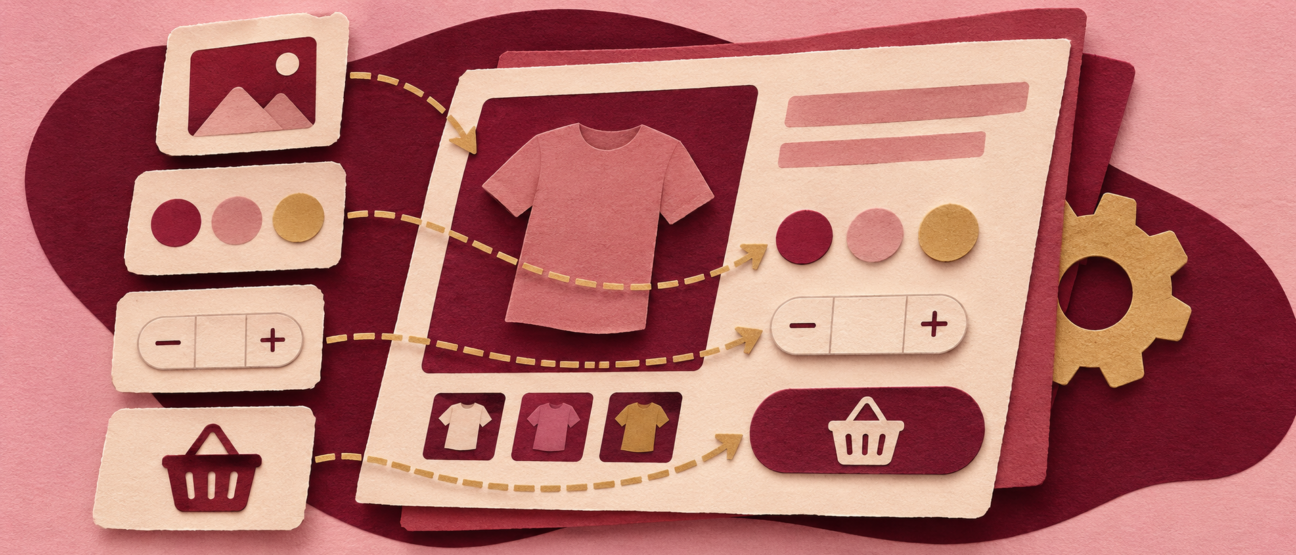
You can customize WooCommerce product pages with blocks by editing the applicable Single Product template in the Site Editor when your store uses a compatible block theme. Rearrange the template’s product blocks, adjust supported styles, and test several product types before applying the design to a live store.
Keep product data and layout separate. Change a product’s price, stock, description, or options in its product record. Change the shared arrangement in the template. This distinction prevents one product’s details from being hard-coded into a layout used throughout the catalog.
Check your setup and protect the store
Confirm that the active theme supports the Site Editor and that you have permission to edit the design. The WooCommerce product-page guide describes the block-theme workflow. Classic themes and builder-owned product templates require their own documented customization methods.
Use a current backup and a protected staging copy. Disable live payments, customer emails, and production integrations on staging. Do not experiment with shared product templates directly during a busy sales period.
Record the theme, WooCommerce, and extension versions. Available blocks and controls can change, so test the components present in your installed version rather than copying an old tutorial exactly.
Choose representative products
Prepare a small test set: a simple product, a variable product, a sale item, an unavailable item, and a product with a long title or description. Add downloadable, subscription, booking, or other specialist products if your store sells them.
For each one, write the buying questions that the page must answer. A clothing shopper needs size and fit information; a downloadable template buyer needs file details and compatibility. A layout should prioritize those needs rather than imitate an unrelated store’s design.
Include products with different image proportions. A gallery that looks balanced with one square image may behave differently with several portrait photographs or missing media.
Open the correct product template
Go to Appearance → Editor → Templates and locate the WooCommerce product template, commonly Single Product. Check whether a more specific template applies to a test product. The WooCommerce templates documentation explains the shared scope of template changes.
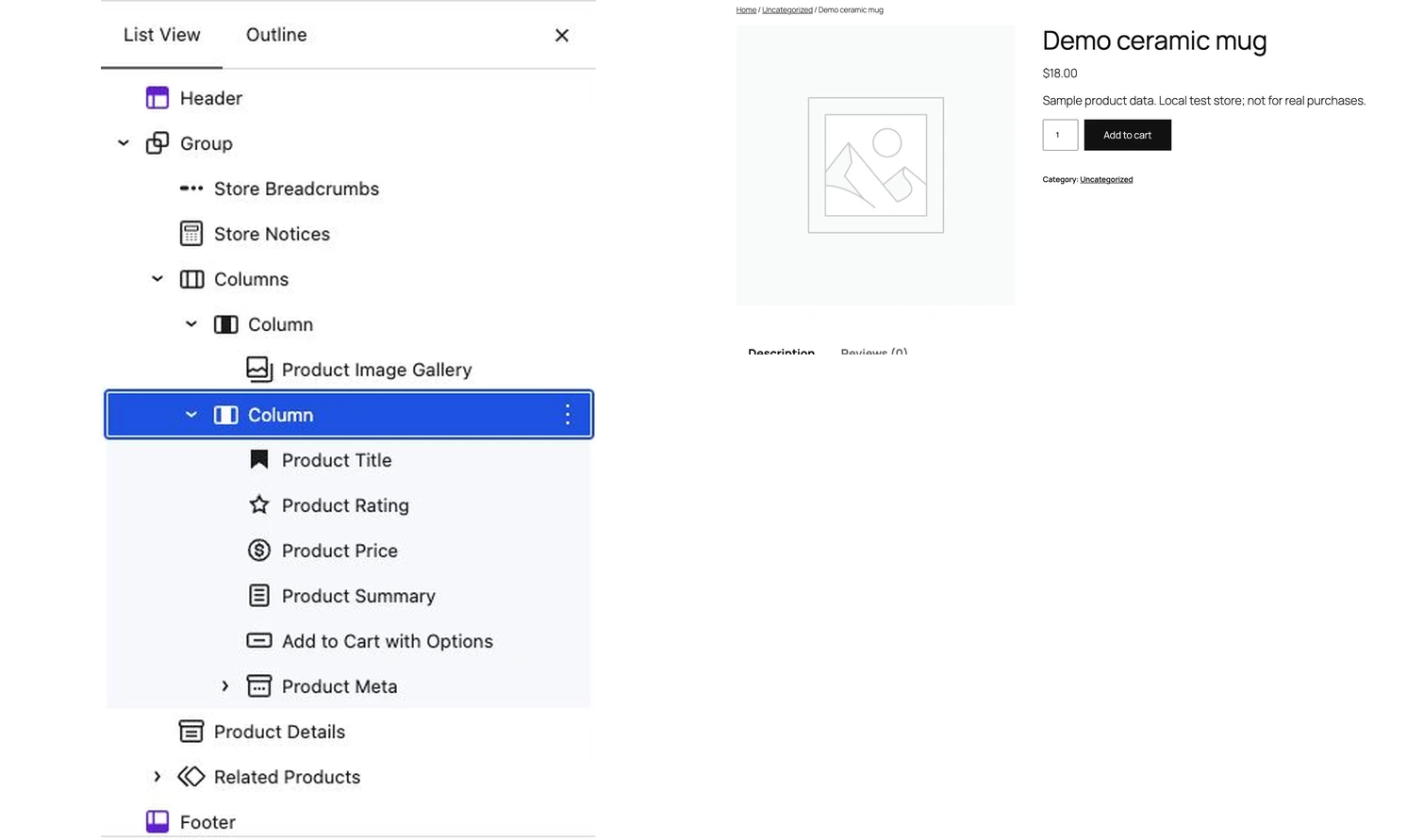
Open List View and identify the main groups: product media, summary information, purchase controls, detailed content, and related products. Save a reference screenshot before changing the structure.
Be clear about ownership. If a page builder or extension replaces the product layout, editing a separate block template may not affect the rendered page. Establish which component supplies the live design first.
Keep dynamic product information dynamic
Use the product blocks supplied by the store setup for product-specific information. These blocks are intended to display the current product’s values. Do not replace the dynamic price with a manually typed paragraph just to match a visual reference.
Edit the product record when the underlying information is wrong. The product management documentation covers that side of the workflow. Layout changes should not become a substitute for accurate catalog data.
A useful verification is to switch between two test products with different prices and titles. If the supposedly shared layout shows identical product-specific details, inspect whether content was hard-coded accidentally.
Arrange the main buying information
Place the product identity, price, relevant options, availability, and purchase action in a clear sequence. On a wide screen, media and a purchase summary may sit beside each other. On a phone, the sequence should remain understandable when stacked.
Keep essential information near the decision it supports. For example, a size guide should be discoverable when choosing a size, and meaningful delivery expectations should not be buried behind unrelated promotional sections.
Use a short summary for immediate questions and a longer description for details. Avoid repeating the same paragraph in several places just to make the page longer.
Handle galleries and purchase controls carefully
Inspect the gallery and add-to-cart blocks available in your version. WooCommerce’s documentation notes that newer alternatives may appear alongside older components. Check their supported options and extension compatibility before replacing an existing working block.
For galleries, test thumbnails, zoom, image changes, and dismissal behavior. Use real product photography where product accuracy matters. Decorative stock imagery should not imply that it depicts the actual item for sale.
For variable products, test each option combination and the unavailable states. Confirm the price, image, availability, and purchase button update appropriately. A layout that works for a simple product may still hide a required selector or message for a variable one.
Add useful supporting sections
Below the main purchase area, include details that answer genuine questions: specifications, dimensions, care instructions, compatibility, delivery information, or a useful frequently asked questions section. Keep shared business information separate from product-specific claims.
Use reusable patterns for appropriate editorial sections, but check their synchronization behavior. A shared delivery notice may be suitable for multiple products; a product-specific specification table should not overwrite unrelated items.
Keep related products relevant and subordinate to the main task. A large recommendation section above the purchase controls can distract visitors who are trying to choose the current item.
Use a special template when necessary
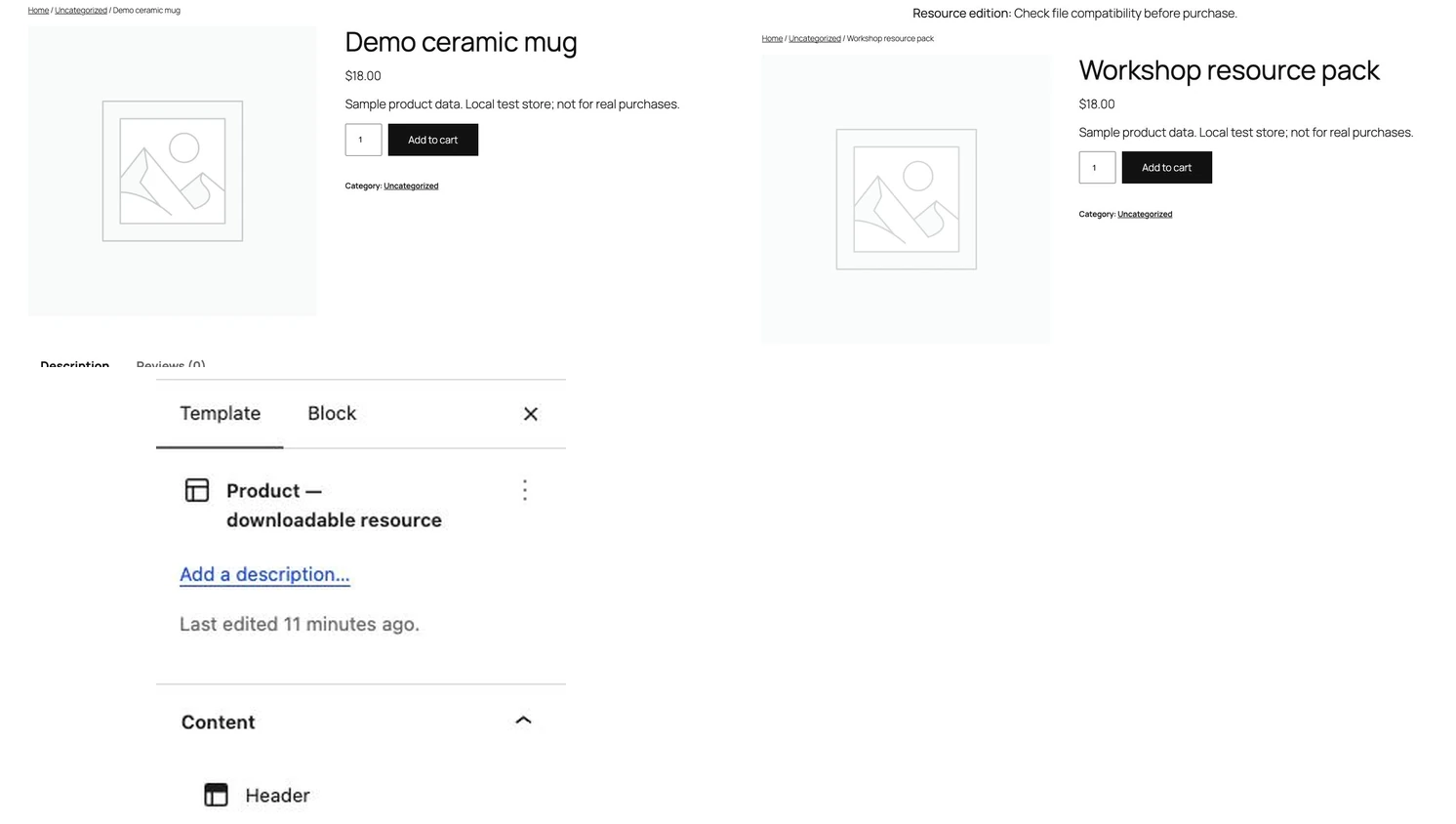
If one product category needs a substantially different layout, investigate supported template options rather than filling the standard template with confusing exceptions. Start with one test product and confirm the assignment.
Name the special template by purpose, such as “Product — downloadable resource.” Document which products should use it and who maintains it. A growing collection of unexplained templates makes later updates risky.
When changing a shared component, test both the default template and every special template that uses it. A design system is only useful if its references remain understandable.
Test the complete purchase journey
| Test state | What to confirm |
|---|---|
| Simple product | Correct information and working add-to-cart |
| Variable product | Visible selectors, correct updates, helpful unavailable states |
| Out of stock | Accurate availability and appropriate action |
| Long content | Readable wrapping and no clipped controls |
| Mobile | Usable gallery, options, quantity, and purchase controls |
| Checkout handoff | Correct product and variation reach the cart |
Use sandbox payment tools where relevant and test errors as well as success. Verify keyboard access, visible labels, focus, and zoom. Check that sticky bars or chat widgets do not cover the purchase action.
Test optimization settings too. Delayed scripts that improve a score can disrupt variation selection or cart behavior. The released configuration needs to pass the same buying checks as the unoptimized test.
Release and maintain the design
Apply the tested changes through your normal release process and avoid overwriting newer store data with an older staging database. Clear appropriate caches and place a controlled test order using the agreed method.
Keep a record of the templates changed and the product states tested. Revisit those examples after important theme, WooCommerce, or extension updates. Product templates depend on more than their appearance.
Frequently asked questions
Will changing Single Product affect every product?
It affects products using that template. More specific templates or another layout provider can produce exceptions, so check assignments.
Can I use these steps with a classic theme?
Not directly. Follow the theme’s supported WooCommerce customization path or test a block-theme migration separately.
Why is the product price wrong after a layout edit?
Check the product data and confirm that the template uses the correct dynamic block rather than manually entered text. Test another product to identify a shared-template mistake.
A strong product page answers buying questions and keeps the purchase flow reliable. Treat template design, catalog accuracy, and end-to-end testing as one release task.
Leave a Reply